
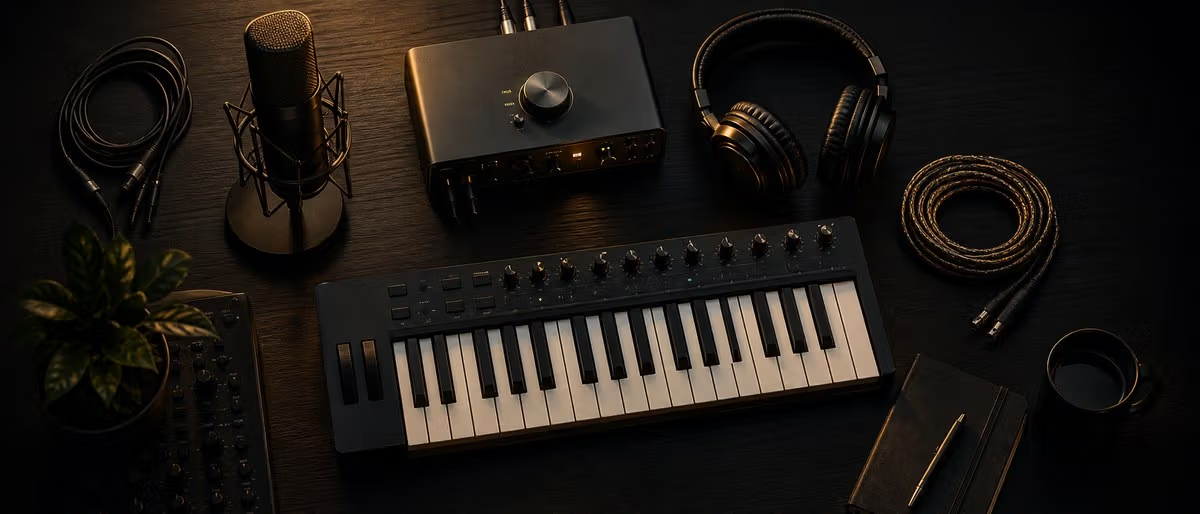
How to Set Up Your First Home Studio: A Complete Beginner's Guide (2026)

Complete guide to setting up your first home recording studio — from choosing a room and acoustic treatment to connecting your audio interface, monitors, and DAW.

Quick Answer

You do not need a fortune to make professional music. Here is exactly what to get and how to connect it, in priority order.

  1. Computer + free DAW (no cost to start)
  2. Audio interface (Scarlett 2i2 is the industry standard starter)
  3. Studio headphones (Sony MDR-7506 or Audio-Technica ATH-M50x)
  4. XLR microphone if recording vocals (Behringer XM1800S works fine as a starter)
  5. Acoustic foam at first reflection points
  6. Cables, stands, and a decent desk chair

Introduction

Home studios have completely democratized music production. Twenty years ago, recording a decent demo required booking expensive studio time and paying an engineer. Today, anyone with a laptop and a few hundred dollars can produce tracks that sound comparable to major-label releases. But the sheer amount of gear, advice, and conflicting opinions online makes it genuinely confusing to know where to start.

Here is what actually matters when you are setting up your first home studio: skip the nice-to-haves and focus on the minimum that lets you produce, monitor, and record cleanly. Once you understand why each piece of gear matters, you can upgrade intelligently.

This guide walks you through every decision from choosing a room to connecting your final cable. No fluff, no gear snobbery — just what works.

Choosing the Right Room

The room you work in is not just a backdrop — it is the acoustic environment that shapes every mixing decision you make. A treated bedroom can sound better for production work than an untreated living room twice its size.

Size Considerations

Smaller rooms are actually easier to treat initially because you have fewer acoustic problems to solve. A spare bedroom (8x10 feet or larger) works well. Large rooms with high ceilings create their own set of challenges — standing waves and reverb are harder to control when you have 15-foot ceilings.

Avoid rooms where you can hear street noise, HVAC hum, or neighbor conversations clearly. These external sounds will show up in your recordings and distract you during mixing sessions.

The Closet Recording Myth Debunked

You have probably seen videos of singers recording in closets full of clothes, and while it is true that clothes absorb high frequencies and reduce flutter echo, a closet is not actually a good recording space for most purposes.

Here is the problem: most closets are too small for a singer to maintain proper distance from the microphone, which leads to proximity effect (an unnaturally bass-heavy sound) and exaggerated sibilance. The low-frequency energy from your voice also builds up in a tiny enclosed space in a way that is hard to fix later.

A small spare room with even basic acoustic treatment will give you cleaner, more controllable recordings than a closet ever could. If you only have a closet available, treat it as a last resort and keep the singer at least two feet from any clothing or wall surface.

The Essential Home Studio Gear List — Priority Order

Buying gear in the wrong order is one of the most common beginner mistakes. People spend $400 on a microphone before they have a proper interface, then wonder why their recordings still sound noisy. Follow this priority order.

  1. DAW (computer plus software) — the most important investment. A Digital Audio Workstation is where every element of your music comes together. Free options like Cakewalk (Windows), LMMS, or GarageBand (Mac) let you start producing today at zero cost. As you improve, you can upgrade to Ableton Live, FL Studio, Logic Pro, or Pro Tools. The DAW itself does not make your music sound good — your skills do — but a poorly organized interface will slow you down and frustrate you. Try a few free DAWs before committing to one.
  2. Audio Interface — the heart of your studio. This is the box that converts analog sound from your microphone or instruments into digital data your computer can process, and converts digital audio back to analog for your monitors and headphones. A clean preamp in your interface makes a bigger difference to your recording quality than the microphone you use. The Focusrite Scarlett 2i2 is the most recommended starter interface for good reason — it has clean preamps, reliable drivers, and enough inputs to record a vocal and an instrument simultaneously.
  3. Studio Monitors or Headphones — your reference. These are not for enjoying music — they are for making accurate mixing decisions. Consumer headphones and speakers are voiced to sound pleasing (extra bass, warm highs), which means if you mix on them, your bass will be too loud on every other system. Studio monitors and reference headphones aim for a flat response so you hear what is actually in your mix. A good starting pair of headphones like the Sony MDR-7506 (under $100) will serve you well for years.
  4. Microphone — only if recording vocals or instruments. If you are producing electronic music and not recording live audio, this can wait. If you need a vocal microphone, you do not need to spend $300+ to get started. The Behringer XM1800S is an honest three-pack of dynamic microphones that costs less than $50 and works perfectly fine for home recording. Dynamic microphones like this reject room noise better than condensers, which makes them ideal for untreated spaces.
  5. MIDI Controller — for keys and pads. You can produce entire tracks with just a mouse, but a MIDI controller makes the process dramatically faster and more intuitive. Even a simple 25-key controller like the Akai MPK Mini lets you play in melodies, program drums on pads, and control DAW parameters in real time. If you produce any kind of electronic, hip-hop, or ambient music, this will change your workflow.
  6. Acoustic Treatment — cheap first steps. Before you spend money on expensive panels and bass traps, try moving your desk to the center of the room (not against a wall) and identifying where sound bounces from your monitors directly to your ears. A mirror test works well: sit at your desk, have someone slide a mirror along the wall, and mark any spot where you can see your monitor reflection. Those spots are your first reflection points, and that is where foam panels go first.
  7. Cables and Stands — the overlooked essentials. Cheap XLR cables can introduce noise and intermittent connection problems that are maddening to troubleshoot. Buy reputable brands (Mogami, Hosa, or even Monoprice) and buy them once. You need at minimum two XLR cables (microphone to interface, or longer run), possibly TRS cables if your monitors are not self-powered, and a decent desk lamp. A proper microphone boom arm (like the Gator Frameworks series, under $50) is far better than a cheap desk stand.

How to Connect Everything — Step by Step

The connection diagram for a typical home studio is simpler than most people expect. Here is the exact signal flow from every component to your DAW.

Interface to Computer (USB or Thunderbolt)

  1. Connect the interface to your computer using the cable that came with it (USB-C, USB-B, or Thunderbolt).
  2. Install any drivers the manufacturer requires before plugging in the interface. Focusrite Scarlett users download the Scarlett Plug-in Suite from the Focusrite website.
  3. Connect via USB and check that your computer recognizes the interface in your DAW's audio preferences.

Interface to Studio Monitors

  1. Identify whether your monitors are active (self-powered) or passive (need a separate amplifier). Most nearfield studio monitors under $500 are active.
  2. Run a TRS cable (balanced, 1/4-inch) from each monitor to the corresponding output on your interface. Left monitor goes to Output 1, right monitor to Output 2.
  3. If your monitors have volume controls, set them to their unity gain position (usually marked or at 12 o'clock).

Interface to Microphone

  1. Run an XLR cable from your microphone to Input 1 on the interface.
  2. On your interface, enable +48V phantom power ONLY for condenser microphones. Dynamic microphones do not need phantom power. Sending 48V to a dynamic mic will not damage it, but it is unnecessary.
  3. Set the input gain so that your loudest input registers between -12dB and -6dB on the interface's meter. Peak at -3dB, never at 0dB.

Interface to MIDI Controller

  1. Connect the MIDI controller to your computer via USB. Most modern MIDI controllers are class-compliant, meaning they work without additional drivers.
  2. In your DAW, go to the MIDI settings and make sure the controller is recognized as an input device.
  3. Assign the MIDI channels in your DAW to the correct track and you are ready to record MIDI.

Gain Staging at Each Step

Gain staging is the process of setting appropriate signal levels at every point in your chain. The goal is to keep the signal loud enough to sit above noise floor but not so loud that it clips and distorts. Here is the proper sequence:

  1. Microphone preamp gain: Set this so your loudest performance peaks around -12dB to -6dB on the interface meter. This gives you headroom for unexpected volume spikes.
  2. Interface output: Keep this at unity gain (0dB) if your monitors have their own level control, or set it so your monitors are at a comfortable listening level.
  3. DAW channel faders: Aim to have your master fader sitting around -6dB to -3dB when your mix is at its loudest. If it is hitting 0dB and the master meter is going into red, your mix has a headroom problem.

DI Box for Guitars and Basses

If you want to record an electric guitar or bass directly (without a microphone on an amp), you need a DI box. This converts the high-impedance unbalanced signal from your instrument into a low-impedance balanced signal that your interface preamps can handle cleanly. Many audio interfaces (including the Scarlett 2i2) have dedicated HI-Z or instrument inputs built in, which means you can plug your guitar directly in without a separate DI box. Check your interface manual.

DAW Setup for Your Interface — Buffer Size, Sample Rate, Input Routing

Once your interface is physically connected, there are a few settings inside your DAW that directly affect how well everything works together. These are worth understanding before you start a session.

ASIO, WASAPI, Core Audio — Which Driver to Use

Your interface comes with its own driver type, and using the correct one matters. ASIO (Audio Stream Input Output) is the Windows standard and gives you direct access to your interface's hardware with the lowest latency. Always use the manufacturer-provided ASIO driver, not the generic Windows WASAPI driver, for recording work. On Mac, Core Audio handles this automatically and you do not need to think about it.

Buffer Size: 128 vs 256 vs 512 Samples — Latency Trade-offs

Buffer Size Approximate Latency CPU Load Best Use Case
128 samples ~3ms Low Tracking/recording vocals and instruments with real-time monitoring
256 samples ~6ms Moderate General recording with some plugins active; good balance
512 samples ~12ms Low Mixing with many plugins; comfortable monitoring during playback
1024+ samples ~24ms+ Very Low Bounce-only sessions; not usable for real-time monitoring

For most home studio recording, 256 samples is the sweet spot. Low enough for comfortable real-time monitoring, high enough that you do not get crackles and dropouts when you load up a few plugins. If you hear clicks and pops while recording, raise the buffer until the problem goes away.

Sample Rate: 44.1kHz vs 48kHz

44.1kHz is the standard for music production because it is the sample rate used for CDs. 48kHz is the standard for video post-production and film. For a home studio focused on music, stick with 44.1kHz — it is what your music will be delivered at and there is no audible quality difference between the two rates for music production purposes. Do not use 96kHz unless you have a specific reason — higher sample rates increase your CPU load and file sizes without any perceptible benefit for most music.

Input Routing

In your DAW, make sure your interface inputs are correctly mapped before recording. Create an audio track, select the correct input channel (usually Input 1 for a single vocal mic), arm the track for recording, and check that your microphone signal appears in the DAW before you start the actual session. This takes two minutes and saves you from re-recording takes because the signal was going to the wrong place.

Acoustic Treatment on a Budget

Acoustic treatment is not soundproofing — it controls reflections and standing waves inside your room so you can hear your mixes accurately. Soundproofing keeps sound in and out; acoustic treatment makes the sound inside your room better. You need both if you are in an apartment, but treatment is what affects your mixing decisions most.

Foam Panels: Where to Put Them First

The first places to put acoustic foam are your first reflection points. These are the spots on the side walls (and ceiling) where sound from your monitors bounces directly to your ears before reaching you from the speaker itself. This reflection combines with the direct sound and creates a comb-filtering effect that makes it impossible to hear your mix accurately.

Use the mirror test described earlier. Mark the points you find with tape, and put 2-inch foam panels (or even thick moving blankets to start) at those spots. A starter pack of 12 acoustic panels from a brand like Foamily or Auralex costs under $60 and covers the most critical points.

Bass Traps: Why Corners Matter

Bass frequencies have long wavelengths, and they accumulate in room corners where they create an unnaturally boosted low-end response. If your mixes always seem to have too much or too little bass, your room corners are likely partly to blame.

A corner bass trap does not need to be expensive. Stack 4 bundles of Roxul or Johns Manville mineral wool (available at any home improvement store for under $30 each) in each corner of your room behind your desk. Cover them with a breathable fabric if you want it to look finished. This is more effective than most commercial bass traps costing ten times as much.

DIY Options That Actually Work

  • Moving blankets: Heavy moving blankets hung at first reflection points absorb mid and high frequencies effectively. They will not win any interior design awards, but they work.
  • Bookshelf diffuser: A bookshelf filled with books of varying sizes creates organic diffusion that breaks up sound reflections naturally.
  • Mineral wool panels: Building your own panels with R-13 or R-19 insulation and a wooden frame costs roughly half of what commercial panels do and performs comparably.
  • Carpet on the floor: Hard floors reflect high frequencies and cause comb filtering with floor reflections. A thick rug under your desk and speaker area helps noticeably.

What NOT to Waste Money On

  • Egg crate foam: The thin egg-crate style foam sold at hardware stores looks similar to acoustic foam but absorbs almost nothing. It is a waste of money.
  • Expensive commercial bass traps before treating reflection points: Fix the easy problems first. If you have no panels on your walls, a $200 bass trap kit is not going to help.
  • Active noise cancellation panels: There is no such thing as an acoustic panel that actively cancels sound at reasonable prices. Any product claiming this is marketing fiction.
  • Full-room treatment before understanding your room: Treat one thing at a time and listen to the difference. A full $1,000 treatment in the wrong configuration is worse than $100 placed correctly.

Studio Ergonomics — Desk Height, Monitor Positioning, Chair Importance

Ergonomics is easy to dismiss when you are just starting out, but if you spend hours each day in your studio, the wrong setup leads to back pain, neck strain, and premature fatigue that affects your creative output.

Desk Height and Speaker Position

Your desk should be at seated elbow height — roughly 26 to 28 inches for most adults. If your desk is too high, your monitors are likely too high as well, which creates a listening position where you are looking up at them instead of directly at them.

Studio monitors should be at ear height, forming an equilateral triangle with your head. That means if your monitors are 3 feet apart from each other, each one should also be about 3 feet from your ears. They should be aimed directly at your ears, not pointing straight ahead or at the wall behind you.

The Chair Matters More Than You Think

You will spend hours sitting in your studio chair, and a bad chair causes distraction, discomfort, and shifts in your posture that subtly change your monitoring position and therefore your perception of the mix. An office chair with adequate lumbar support and adjustable height is the minimum. If your budget allows, invest in a proper ergonomic chair — Herman Miller, Steelcase, or even a well-reviewed budget option like the Branch Daily Chair. This is not where you want to cheap out.

Monitor Distance and Positioning

Most beginners place their monitors too close together and too far away. For nearfield monitoring (the standard for home studios), your monitors should be close enough that you can see the individual drivers and far enough that the left and right channels blend into a coherent stereo image. Two to three feet from your ears is the sweet spot for most setups.

Avoid putting monitors directly on the desk surface if possible — the vibration couples with the desk and adds coloration. Dedicated monitor stands or foam isolation pads break this coupling and give you a cleaner sound.

Budget Tier Recommendations — $300, $500, $1000 Starter Setups

Component $300 Budget $500 Budget $1000 Budget
DAW Cakewalk (free) or GarageBand (free) Cakewalk, GarageBand, or FL Studio Fruity Edition ($99) FL Studio Producer ($199) or Ableton Live Standard ($399)
Audio Interface Behringer UMC22 or Focusrite Scarlett Solo ($100) Focusrite Scarlett 2i2 (2nd or 3rd gen, ~$160) Focusrite Scarlett 4i4 or Audient id14 ($250-300)
Monitoring Sony MDR-7506 headphones ($100) Sony MDR-7506 + Behringer Truth B2030A monitors ($100 + $200) Audio-Technica ATH-M50x + JBL 306P monitors or Kali LP-6 ($150 + $250)
Microphone Skip for now (produce electronic only) or Behringer XM1800S ($15) Behringer XM1800S 3-pack or Shure SM58 ($50-100) Shure SM58 or Rode NT-USB Mini ($100-150)
MIDI Controller Skip for now or Akai MPK Mini Play ($80) Akai MPK Mini MK3 ($100) Akai MPK 249 or Arturia MiniLab 3 ($150-180)
Acoustic Treatment Moving blankets and careful desk placement (free-$30) Foamily 12-pack foam panels ($50-60) Foamily panels + mineral wool corner bass traps ($150-200)
Cables and Stands 2 XLR cables (Mogami or Hosa, $20-30) XLR cables + microphone boom arm ($50-80) Quality cables + boom arm + monitor stands ($100-150)

The $500 tier is the sweet spot for most beginners. You get a proper Scarlett interface (the industry standard for a reason), the ability to record vocals, decent headphones for mixing, and enough left over for basic acoustic treatment. The $300 tier is perfectly viable if you produce purely electronic music and want to invest slowly over time.

At the $1000 tier, you are looking at gear that will last you several years without feeling like you need an upgrade. The jump from a $100 interface to a $250 interface is not dramatic in terms of features, but the preamp quality and dynamic range improvement are immediately audible on recordings.

Frequently Asked Questions

How much does a beginner home studio cost?
You can get a functional starter studio for around $300-500. At this price you get a decent audio interface, a pair of studio headphones or monitors, and a free DAW. A $500 budget lets you cover all the essentials including a microphone if you plan to record vocals. Going to $1,000 gives you a significant quality jump across all gear categories and lets you skip a lot of compromises.
Do I need acoustic treatment for a bedroom studio?
Yes, but probably less than you think. Basic acoustic treatment makes a noticeable difference even in a small bedroom. Start with foam panels at your first reflection points (the spots on the wall where sound bounces from your monitors into your ears). You do not need to treat every surface — a focused approach at key points is far more effective than covering everything with cheap panels.
What is the most important piece of studio equipment?
Your DAW (Digital Audio Workstation) and the room you work in are tied for first place. The DAW is where every element of your music comes together, and its importance cannot be overstated. However, a $5,000 interface in a sounding box of a room will still sound worse than a $200 interface in a properly treated space. Most beginners underestimate how much the room affects their monitoring and mixing decisions.
Can I make music with just a laptop and headphones?
Absolutely. Many producers start exactly this way and release professional-sounding music before ever buying monitors. Get a decent pair of over-ear studio headphones (not earbuds or gaming headset), install a free DAW like Cakewalk or LMMS, and you are already in the game. The critical thing is to learn on headphones first, understand how they translate to other systems, and invest in room treatment once you can afford it.
How do I reduce latency in my home studio?
Latency comes from your buffer size setting in the DAW. Lower buffer sizes like 128 or 256 samples give you near-instant monitoring but put more CPU strain on your computer. Higher values like 512 or 1024 are easier on the CPU but introduce noticeable delay that makes real-time monitoring difficult. For recording, keep the buffer at 256 or below. For mixing with lots of plugins, 512 is usually the sweet spot. Thunderbolt connections generally offer lower latency than USB at the same buffer size.
Should I get monitors or headphones first?
Headphones first, every time. A good pair of studio headphones under $150 already gives you a detailed flat reference for mixing. Studio monitors at the same price point often have compromised drivers and boosted bass that can mislead your mixing decisions. Once you have a treated space and a budget of $400+, monitors become the better choice. Many professionals use both — headphones for detailed work and checking mono compatibility, monitors for overall balance.

Ready to start building your home studio? Browse our curated collection of studio monitors, audio interfaces, and microphones to find gear that matches your budget and goals.

Browse Studio Gear

Learning path

Related answer hubs