
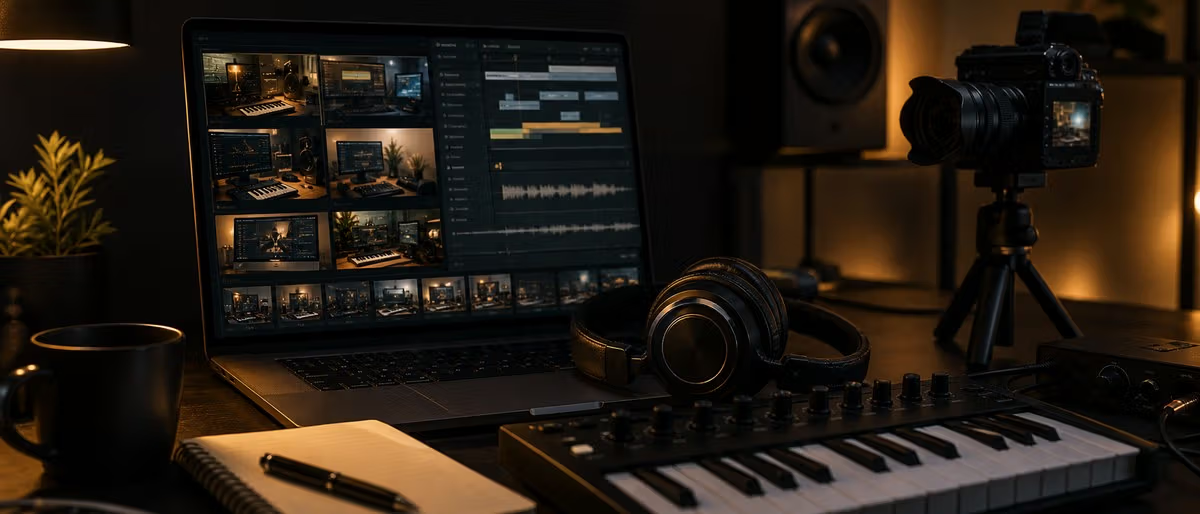
Quick answer: What Is MIDI? Complete Guide for Music Producers
Unlike audio recordings (WAV, MP3), MIDI contains no sound i
Quick Answer
MIDI (Musical Instrument Digital Interface) is a communication protocol that sends performance data — note on/off, velocity, pitch bend — between devices, not audio. It enables virtual instruments, MIDI controllers, and DAWs to interact, letting you play, record, and edit musical performances as data rather than sound waves.
Unlike audio recordings (WAV, MP3), MIDI contains no sound itself — it is a set of instructions that tells a synthesizer or sampler which notes to play, how hard, and for how long.
Introduction
MIDI is one of the most foundational technologies in modern music production, yet it confuses beginners constantly. The confusion is understandable: the name sounds like it should relate to sound, and the cables look like audio cables. Here is the truth that every producer needs to internalize immediately:
MIDI IS NOT SOUND. MIDI IS NOT AUDIO. MIDI IS DATA.
MIDI (Musical Instrument Digital Interface) is a communication protocol that transmits performance data between electronic music devices. When you press a key on a MIDI keyboard, it does not send audio — it sends a digital message saying "note C3 just turned on with velocity 95." When you release the key, it sends "note C3 just turned off." Your DAW or synthesizer receives these messages and generates the actual sound.
This distinction matters enormously because it unlocks the flexibility that makes modern music production possible. The same MIDI data can trigger a piano sound, a drum kit, a string ensemble, or a synthesizer — you decide what makes the sound by choosing which instrument processes the MIDI data.
MIDI vs Audio: What's the Difference?
This is the single most important concept for any aspiring music producer to understand.
| Aspect | MIDI | Audio |
|---|---|---|
| What it contains | Performance instructions (note, velocity, timing) | Actual sound waves (WAV, MP3, FLAC) |
| Editable? | Every note can be changed, deleted, or moved | Requires warping or re-recording to change |
| File size | Tiny (a few KB per song) | Large (tens of MB per song) |
| Pitch control | Transpose to any key freely | Pitch-shifting degrades quality |
| Sound | No inherent sound — depends on instrument | IS the sound itself |
| Flexible? | Change instruments, tempo, key after recording | Locked to recorded tempo and key |
Analogy: Think of MIDI as sheet music and audio as a recorded performance. Sheet music tells a musician what notes to play — but it is not itself sound. The same sheet music can be performed by an orchestra, a piano, or a guitar, producing completely different audio results from the same instructions.
Why this matters in practice: If you record a guitar riff as audio, the notes, timing, and pitch are baked in. If you play the same riff on a MIDI keyboard, you can quantize the timing, change the pitch without pitch-shifting artifacts, swap the guitar sound for a synthesizer, or edit every individual note's velocity. MIDI gives you surgical control that audio never can.
The MIDI Message Types: Note On/Off, Velocity, Pitch Bend, CC
MIDI devices communicate through a relatively small set of message types. Understanding these four is enough to understand 90% of what MIDI does in music production.
Note On / Note Off
The most fundamental MIDI messages. Every time you press and release a key on a MIDI controller, two messages are sent:
- Note On — A number indicating which pitch (0–127, where middle C = 60), plus a velocity value (1–127) indicating how hard the key was struck
- Note Off — The same pitch number, telling the instrument to stop playing that note
Note On with velocity 0 is equivalent to Note Off, which is why some controllers only send Note On messages.
Velocity
Velocity measures how hard you strike a key (or how hard you hit a pad). The range is 1–127:
- Low velocity (1–40): Quiet, often gentle or staccato note attacks
- Medium velocity (41–80): Normal playing dynamics
- High velocity (81–127): Loud, accented notes with punchy attacks
Velocity in MIDI triggers two things in most instruments: volume (louder notes) and attack (harder hits often trigger brighter or harder attack transients). This is why MIDI performances feel expressive even with virtual instruments.
Pitch Bend
Pitch bend messages tell a synthesizer to shift the pitch of the currently playing note up or down. This is how you achieve:
- Guitar-style string bends
- Vocal vibrato effects
- Synth dive bombs and rises
- Subtle intonation adjustments
Most MIDI controllers have a dedicated pitch bend wheel (usually to the left of the keyboard). Pitch bend values range from -8192 (full bend down) to +8192 (full bend up), with 0 being the original pitch.
Control Change (CC)
Control Change messages are how MIDI communicates continuous parameters — knobs, faders, switches, and pedals. There are 128 CC numbers (CC0–CC127), and each can carry a value from 0–127.
Common CC assignments you will encounter:
| CC Number | Name | Typical Use |
|---|---|---|
| CC1 | Modulation | Often mapped to a mod wheel for vibrato or filter movement |
| CC7 | Volume | Per-channel volume control |
| CC10 | Pan | Stereo positioning |
| CC64 | Sustain | Sustain pedal on/off (64–127 = on, 0–63 = off) |
| CC91 | Reverb | Reverb send amount |
| CC93 | Chorus | Chorus send amount |
MIDI Channels: 1–16 Explained
MIDI has 16 channels. Each channel operates independently, meaning you can send 16 different streams of MIDI data over a single cable simultaneously.
How channels work in practice: Imagine you have a MIDI keyboard (controller) connected to two different synthesizers. You can set your keyboard to send on Channel 1 and configure Synth A to receive on Channel 1. You can then send a different MIDI data stream on Channel 2 to Synth B, and each synth will only respond to its assigned channel.
- Multi-timbral instruments: Some hardware synths can load multiple sounds simultaneously, with each sound assigned to a different MIDI channel. One keyboard can control a drum kit (Channel 10 is conventional for drums), a bass (Channel 2), and pads (Channel 3) all at once.
- Separate tracks in a DAW: DAWs route MIDI data by channel, so Channel 1 might trigger a piano VST while Channel 2 triggers a bass VST, even though both are coming from the same physical controller.
- Channel mute/solo per instrument: In hardware setups, muting a MIDI channel stops data flow to that device's sound engine without affecting other channels.
Omni mode: Most modern MIDI devices (and all DAWs) operate in "Omni On" mode by default, meaning they listen to all 16 MIDI channels simultaneously. This is convenient but means you lose the ability to route different data streams to different instruments using channel assignment alone.
What MIDI Controllers Are and Why You Need One
A MIDI controller is a hardware device that sends MIDI data to your DAW or hardware synthesizer. It does not make any sound on its own — it only generates the instructions that tell your software or hardware what notes and gestures to reproduce.
Types of MIDI Controllers
MIDI Keyboard Controllers are the most common type. They look like piano keyboards but have no internal sounds — they purely send MIDI note and velocity data. They come in various sizes:
- 25 keys: Compact, portable, inexpensive — good for producers who only play melodies or bass lines
- 49 keys: A popular mid-size option that covers enough range for two-handed playing
- 61 keys: Full two-handed range without being as bulky as 88 keys
- 88 keys: Full piano range — essential for classical or jazz piano work
MIDI Pad Controllers (like the Akai MPC, Ableton Push, or Novation Launchpad) feature a grid of velocity-sensitive pads instead of keys. They excel at:
- Drum programming (playing beats in real time feels more natural than clicking in notes)
- Triggering one-shots and samples
- Finger drumming
- Clip launching in DAWs
MIDI Knob/Fader Controllers are mixer-style surfaces with rotary knobs and faders meant for controlling DAW parameters, plugin parameters, and virtual mixers. Many combine with keyboard or pad sections.
Do You Actually Need a MIDI Controller?
No — but you will want one eventually.
You can produce music using only your computer keyboard and mouse. The DAW piano roll accepts mouse input for placing notes, and your keyboard can be mapped to computer keyboard shortcuts. Many successful producers started this way.
However, a MIDI controller adds three things that are hard to replicate with mouse input:
- Expression:
Playing a chord on a keyboard with varying velocities produces a more musical performance than clicking identical velocities in a piano roll - Speed:
Real-time recording into a piano roll is faster than drawing every note by hand - Feedback:
Physical interaction with an instrument is more intuitive and inspires different creative approaches
Using MIDI in Your DAW: Virtual Instruments and MIDI Tracks
In every modern DAW (FL Studio, Ableton Live, Logic Pro, Cubase, Reaper, Studio One), you work with MIDI in two main ways: as a track type and as the input to virtual instruments.
MIDI Tracks vs. Audio Tracks
Your DAW has separate track types:
- MIDI tracks carry MIDI data (notes, velocity, CC) to a virtual instrument
- Audio tracks carry audio waveforms (recorded or imported WAV, MP3, etc.)
A MIDI track does not make sound by itself — it needs a virtual instrument plugin (VST/AU) loaded to produce audio output.
The Signal Flow
[MIDI Controller] → [MIDI Cable / USB] → [DAW MIDI Track] → [Virtual Instrument / VST] → [Audio]
Recording vs. Drawing MIDI
Recording MIDI means playing your controller in real time while the DAW captures the performance. You can then edit, quantize, or layer the recording.
Drawing MIDI means clicking notes directly into the piano roll with your mouse. This is precise but slower and tends to produce mechanically perfect timing that lacks human feel.
Best practice: Record a rough performance, then quantize (snap timing to a grid) to clean up the timing while preserving natural velocity variation. Then adjust individual notes by hand where needed.
MIDI Loops and Patterns: Building Beats with MIDI
MIDI loops are pre-recorded MIDI patterns you can drag into your DAW. Unlike audio loops (which are fixed sounds), MIDI loops are flexible — you can change every aspect of them.
Why MIDI Loops Are Powerful
- Change the sound: The same drum pattern loaded into EZDrummer sounds like real acoustic drums; loaded into a TR-808 plugin, it sounds like vintage electronic drums
- Change the key: A melodic MIDI loop in C major can be transposed to any key instantly
- Change the tempo: Stretch or compress timing freely without pitch artifacts
- Edit individual notes: Delete a hi-hat, change a snare hit velocity, add an extra kick — all without re-recording
Where to Get MIDI Loops and Patterns
You can find free and paid MIDI packs for:
- Drum patterns (kick, snare, hi-hat variations)
- Bass lines (pre-written bass progressions)
- Chord progressions (full chords or arpeggiated patterns)
- Melodies (lead lines, piano patterns, synth phrases)
- Full arrangements (multi-track MIDI patterns for complete song sections)
Connecting External Hardware via MIDI
MIDI has been around since 1983, and the original connection standard — the 5-pin DIN MIDI port — is still used on many hardware synthesizers and drum machines. Modern setups often require adapters or understanding multiple connection types.
MIDI DIN (5-pin DIN)
The original MIDI connector. Each MIDI OUT port sends data; each MIDI IN port receives data. A standard MIDI THRU port echoes everything received at MIDI IN. MIDI DIN does not carry audio — only control data. You still need audio cables to get sound from your hardware synth to your interface.
USB MIDI
Most modern MIDI controllers and some hardware synths connect via USB, which carries both power and MIDI data over a single cable. USB MIDI is plug-and-play with modern DAWs — no additional interfaces required for most controllers.
DIN-to-USB Adapters
If you have a hardware synth with only 5-pin MIDI DIN ports but no USB, you need a DIN-to-USB MIDI interface. These small devices have a MIDI DIN input and a USB output that connects to your computer.
MIDI in Music Production: Common Workflows
MIDI appears in nearly every modern music production workflow, from bedroom producers to professional studios. Here are the most common ways producers use MIDI:
- Recording Live Performances:
Connect a MIDI controller, arm a track in your DAW, and record your performance. This captures note data, velocity, and timing that you can edit afterward. - Programming Drum Parts:
Draw or record MIDI notes into a drum track, using a VST drum sampler to produce the sounds. You can change the kit sound entirely, humanize the timing, and swap individual drums. - Controlling Hardware Synths:
Use your DAW as a MIDI sequencer for hardware instruments. Program patterns in the piano roll, send them to your hardware synth via MIDI, and record the resulting audio back into your DAW. - Automating Parameters:
Map MIDI CC messages to plugin parameters for real-time control. Use knobs on your controller to adjust filter cutoff, reverb mix, or oscillator pitch while recording. - MIDI Arpeggiators and Chords:
Enable the arpeggiator on your MIDI controller or in your DAW to generate note patterns from a single held chord.
Conclusion
MIDI is the communication backbone of modern music production. It is not audio — it is data that tells instruments what to play. This distinction is what makes digital music production so flexible: the same performance can sound like a piano, a synthesizer, or a full orchestra, depending only on which instrument processes the MIDI data.
Every professional producer uses MIDI, whether controlling software instruments in a DAW, connecting hardware synths, or programming drum patterns. Understanding MIDI gives you complete control over every note, every velocity, and every parameter in your productions.
Practical next step: Open your DAW, create a MIDI track, load a free virtual instrument (Vital and Surge XT are both free), and start playing notes with your computer keyboard or a MIDI controller. Experience the difference between drawing notes with a mouse and playing them in real time — that hands-on feel is what MIDI was designed to deliver.
Ready to start making music with MIDI? Explore our curated tutorials and production guides.
Learning path
Related answer hubs
Catalog materials
Production materials to try next
Relevant packs, stems and sound resources from the catalog so readers can move from the guide into production immediately.
![PG Music The Pianist Complete Collection [MiDi]](/images/posts/pg-music-the-pianist-complete-collection-13135.avif?v=2026080101)
Related articles
![Music Hackspace Synthesis with Max: Granular by Phelan Kane [TUTORiAL]](/images/posts/music-hackspace-synthesis-with-max-granular-by-phelan-kane-86602.avif?v=2026080101)
LEARNING / VIDEO TUTORIALS
Music Hackspace Synthesis with Max: Granular by Phelan Kane [TUTORiAL]
![Music Hackspace Synthesis with Max: FM by Ned Rush [TUTORiAL]](/images/posts/music-hackspace-synthesis-with-max-fm-by-ned-rush-86583.avif?v=2026080101)
LEARNING / VIDEO TUTORIALS
Music Hackspace Synthesis with Max: FM by Ned Rush [TUTORiAL]
![True Sound Music Library INITIATION [TUTORiAL]](/images/posts/true-sound-music-library-initiation-85302.avif?v=2026080101)
LEARNING / VIDEO TUTORIALS
True Sound Music Library INITIATION [TUTORiAL]
![Tus Clases De Guitarra Tecnicas y Recursos [TUTORiAL]](/images/posts/tus-clases-de-guitarra-tecnicas-y-recursos-86551.avif?v=2026080101)
LEARNING / VIDEO TUTORIALS
Tus Clases De Guitarra Tecnicas y Recursos [TUTORiAL]
![789ten The DubVision Producer Pack v.6 [WAV, MiDi, Synth Presets, TUTORiAL]](/images/posts/789ten-the-dubvision-producer-pack-v6-86546.avif?v=2026080101)
Samples / Presets / MIDI / VIDEO TUTORIALS
789ten The DubVision Producer Pack v.6 [WAV, MiDi, Synth Presets, TUTORiAL]
![Truefire Melodic Trevor Gordon Hall's Melodic Picking Practice Plan (JamPlay) [TUTORiAL]](/images/posts/truefire-melodic-trevor-gordon-halls-melodic-picking-practic-86171.avif?v=2026080101)
LEARNING / VIDEO TUTORIALS
Truefire Melodic Trevor Gordon Hall's Melodic Picking Practice Plan (JamPlay) [TUTORiAL]
Frequently Asked Questions
- Is MIDI the same as audio?
- No. MIDI carries performance data — note numbers, velocity, timing, and control change messages. It contains no actual sound. Audio (WAV, MP3, FLAC) is a recorded waveform — the actual sound itself. You can edit every aspect of a MIDI performance after recording; audio is fixed once recorded.
- Do I need a MIDI controller to produce music?
- No. You can produce music using only your computer keyboard and mouse. Click notes into your DAW's piano roll, use mouse input for navigation, and draw automation with the pencil tool. MIDI controllers are convenient and more expressive, but they are not a prerequisite for music production.
- Can MIDI control effects (not just instruments)?
- Yes, indirectly. MIDI CC messages can be mapped to any automatable parameter in your DAW or plugins — including effect parameters like reverb mix, delay time, filter cutoff, or distortion amount. While MIDI does not carry audio, you can route CC data to control effect parameters in real time, or record the CC movements as automation.
- What is the difference between MIDI OUT and MIDI THRU?
- MIDI OUT sends MIDI data generated by the controller. MIDI THRU echoes any MIDI data received at the MIDI IN port. If you connect a sequencer to a synthesizer's MIDI THRU, it will pass through the sequencer's data to the next device in the chain.
- Can I use MIDI to control my hardware synth from my DAW?
- Yes. Connect your hardware synth to your computer via a MIDI interface (USB-to-DIN) or directly via USB if the synth supports it. Create a MIDI track in your DAW, set the output to your hardware synth, and play — the DAW sends MIDI data to the hardware synth, which generates the sound.